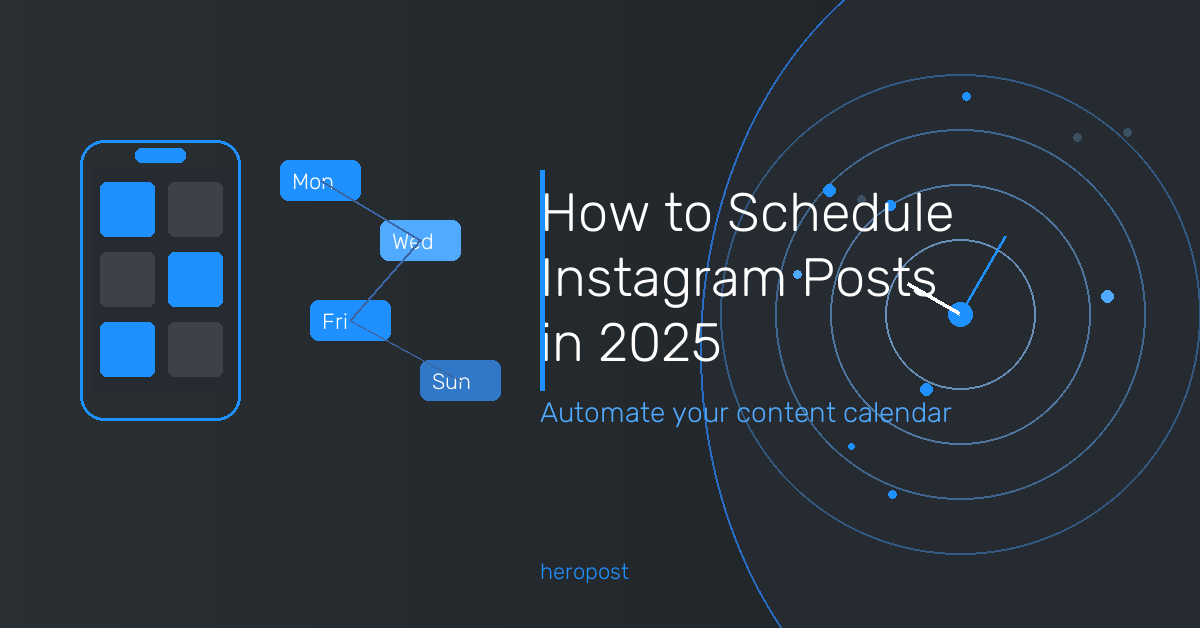
Scheduling Instagram posts saves you hours every week and keeps your content consistent even when life gets busy. In this guide, you’ll learn exactly how to schedule Instagram posts using Instagram’s native tools and third-party schedulers—so you can pick the method that fits your workflow.
Whether you’re a solo creator, a small business owner, or managing multiple client accounts, this step-by-step walkthrough covers everything you need to know.
Why Scheduling Instagram Posts Matters
Posting manually every day sounds simple—until you’re juggling multiple accounts, client deadlines, and campaign calendars. Here’s what consistent scheduling actually gets you:
- Better reach: Instagram’s algorithm rewards consistent activity. Scheduled posts ensure you never miss your optimal posting window.
- Time efficiency: Batch-creating content once a week beats scrambling daily.
- Strategic consistency: Your feed stays cohesive when you plan visuals and captions together.
- Cross-platform coordination: Scheduling tools let you align Instagram drops with Facebook, LinkedIn, and other channels simultaneously.
For agencies and social media managers handling 48,000+ user accounts—like those on Heropost—scheduling isn’t optional. It’s the foundation of scalable operations.
Method 1: Schedule Instagram Posts Using Meta Business Suite (Free, Native)
Meta Business Suite is Instagram’s official free scheduler. Here’s how to use it:
Step 1: Connect Your Instagram Account
- Go to business.facebook.com
- Click All Tools → Meta Business Suite
- In the left sidebar, ensure your Instagram Business or Creator account is connected
Note: You must have a Business or Creator account (not a personal account) to schedule posts. Switch in Instagram Settings → Account → Switch to Professional Account.
Step 2: Create a New Post
- Click Create Post in the top-right corner
- Select Instagram Feed or Instagram Reels (Stories cannot be natively scheduled as of 2026—more on that below)
- Upload your image or video
- Write your caption, add hashtags, and tag any collaborators
Step 3: Schedule the Post
- Instead of clicking Publish Now, click the dropdown arrow next to it
- Select Schedule Post
- Choose your date and time
- Click Schedule
Your post will appear in the Planner view under the calendar. You can edit or reschedule it any time before it publishes.
Limitations of Meta Business Suite
- No support for scheduling Instagram Stories or Carousels via the API in all cases
- No bulk scheduling or content calendar view for high-volume accounts
- No cross-platform scheduling beyond Facebook and Instagram
- No team collaboration or approval workflows
Method 2: Schedule Instagram Posts via the Instagram App
For personal creators who want light scheduling without a desktop tool:
- Open the Instagram app on your phone
- Tap + to create a new post
- After editing, tap Advanced Settings at the bottom
- Toggle on Schedule This Post
- Set your date and time (up to 75 days in advance)
- Tap Schedule
This method works for Feed posts and Reels. It’s useful for individual creators but limited for anyone managing multiple accounts or needing content approval workflows.
Method 3: Schedule Instagram Posts with a Third-Party Tool (Recommended for Scale)

For social media managers, agencies, and brands managing multiple accounts, third-party scheduling tools unlock capabilities that native Instagram tools simply don’t offer.
Top Features to Look For:
- Multi-account management: Handle 10, 50, or 500+ Instagram accounts from one dashboard
- Visual content calendar: Drag-and-drop scheduling with a grid preview
- Auto-publishing: True set-it-and-forget-it posting without push notifications
- Team collaboration: Assign roles, approve content, and leave internal comments
- Analytics: Track reach, engagement rate, best posting times per account
- Cross-platform posting: Schedule the same content to Facebook, LinkedIn, TikTok, and more simultaneously
How to Schedule with Heropost (Step-by-Step)
Heropost supports 12+ social platforms and manages 600K+ posts per month for 48,000+ users. Here’s how to schedule on Instagram using Heropost:

- Create your free account at heropost.io
- Connect your Instagram account: Go to Settings → Social Accounts → Add Account → Instagram. Authorize via Instagram login.
- Open the Composer: Click Create Post from the main dashboard
- Upload your media: Drag in your image, video, or carousel files
- Write your caption: Use the built-in character counter, emoji picker, and hashtag suggestions
- Select your accounts: Choose one or multiple Instagram accounts (and any other platforms you want to post to simultaneously)
- Set your schedule: Pick a specific date and time, or use Best Time suggestions based on your account’s engagement data
- Review and schedule: Click Schedule — your post is queued and visible in the visual calendar.

Heropost also supports bulk scheduling via CSV for agencies importing a full month of content at once.
Comparison: Which Method Should You Use?

| Feature | Instagram Native | Meta Business Suite | Heropost |
|---|---|---|---|
| Cost | Free | Free | Starts at $197 LTD |
| Auto-publish | Yes | Yes | Yes |
| Multi-account | No | Limited | Yes (unlimited) |
| Stories scheduling | No | No | Yes |
| Carousels | Yes | Limited | Yes |
| Team collaboration | No | No | Yes |
| Cross-platform | No | Facebook only | 12+ platforms |
| Analytics | Basic | Basic | Advanced |
| Bulk scheduling | No | No | Yes (CSV) |
Best for solo creators: Instagram app native scheduling
Best for small businesses: Meta Business Suite
Best for agencies and power users: Heropost
Best Times to Schedule Instagram Posts in 2026
Data from multiple social analytics platforms consistently shows these windows drive the highest engagement:
- Tuesday–Thursday: 9 AM–11 AM and 6 PM–8 PM (local time of your audience)
- Saturday: 10 AM–12 PM
- Avoid: Early Monday mornings and late Friday nights
Your best time is unique to your audience. Use Instagram Insights or Heropost analytics to find when your followers are most active.
Pro Tips for Scheduling Instagram Posts
1. Batch your content creation weekly
Set aside 2–3 hours every Monday to create and schedule your week’s posts.
2. Use caption templates
Build swipeable post templates (product announcement, tip, behind-the-scenes) to speed up writing.
3. Always preview your feed grid
Check how new posts will look next to your existing feed before scheduling. Heropost shows a live grid preview.
4. Schedule Stories separately
Stories have a different pace and shelf life. Use Story scheduling for time-sensitive promotions.
5. Don’t set-and-forget engagement
Respond to comments within the first hour after publishing. Early engagement tells Instagram’s algorithm to push your post further.
FAQ: Scheduling Instagram Posts
Can I schedule Instagram posts for free?
Yes. Instagram’s native app and Meta Business Suite both offer free scheduling. Third-party tools offer more features but require a subscription or one-time purchase.
Does scheduling Instagram posts hurt engagement?
No — this is a myth. Instagram’s algorithm doesn’t penalize scheduled posts.
Can you schedule Instagram Stories?
Not with Instagram’s native tools. Third-party tools like Heropost support Story scheduling.
How far in advance can you schedule Instagram posts?
Using the Instagram app, up to 75 days. Third-party tools typically have no practical limit.
Can I schedule Instagram Reels?
Yes — via the Instagram app, Meta Business Suite, or third-party schedulers.
What’s the best tool to schedule Instagram posts for multiple accounts?
For 5+ accounts, a dedicated tool like Heropost is far more efficient. It supports bulk scheduling, team workflows, and analytics across all accounts from one dashboard.
Start Scheduling Your Instagram Posts Today
Scheduling Instagram posts is one of the highest-leverage habits a social media manager can build. It turns daily scrambling into a smooth, predictable content operation.
Start with Instagram’s free native tools if you’re managing a single account. For multiple accounts, team collaboration, and cross-platform campaigns, try Heropost free — it handles 600K+ posts per month for teams worldwide and takes minutes to set up.